Inserting an image into a page [1]
Types and sizes
Format: gif, png, jpg, and jpeg are the image extensions allowed for upload.*
Image size: File uploads are limited to 3mb per image with a resolution of 1920x1080.*
Quota: Each member may have up to 300mb of files uploaded into their directory.*
*These settings can be changed. If you need a higher size limitation or additional file formats, please let us know. Any requests will be considered.
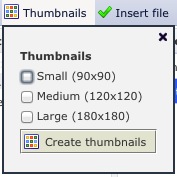
Thumbnails can be created upon upload. The sizes are:
- Small: 90x90
- Medium: 120x120
- Large: 180x180
Instructions
This site runs on Drupal [2] and we're using the IMCE module [3] to enable members to upload pictures. The process is fairly simple, but there are some extra options we'll note below.
- Open a view you would like to insert an image into.
- Click on the image insert icon
 in the editing window.
* If you have any pop-up blockers running on your browser, you may need to disable or make an allowance for our site.
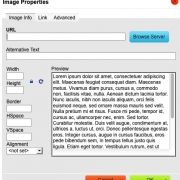
- The image properties window will open. Click the blue Browser Server button.
- The IMCE file browser window will open.
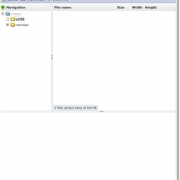
- Click the upload button.

- This will open the file browser window. Click the Browse button to select your image.
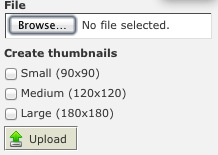
- This will open a file upload window on your computer. Navigate to the image, click to select, and click Open.
* Please note you are only able to upload gif, png, jpg and jpeg files.
- The file will appear in the browser window
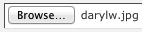 . At this point, you can create up to three thumbnail sizes by selecting your preferred sizes.
- Each thumbnail wil be squared with extra getting cropped.
- If the image is taller than it is wide, the bottom extra will be cut off.
- If the image is wider than it is tall, the sides will be cropped.
- If these crops don't work, you may need to create smaller thumbnails and upload them individually.
- You can also create thumbnails after the image is uploaded by selecting an image and clicking the thumbnail button in the file browser.
- Click the upload button. An announcement your image has uploaded will briefly appear on your screen. The file will appear selected in the file browser window.
* The file browser window may remain. Click the X in the top corner to close and access your file.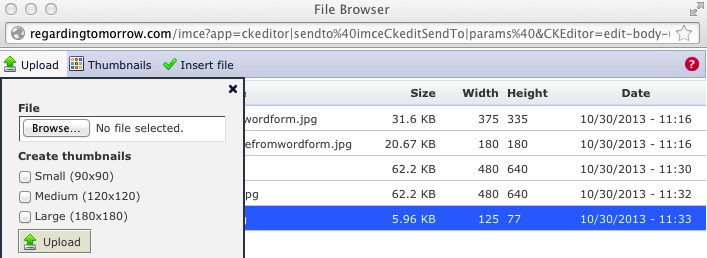
- Click Insert File
 , which will close the file browser window and return you to the image properties file.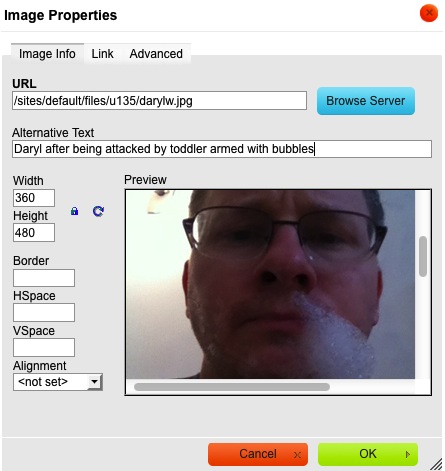
- Options:
- Please make certain you enter an alternative text for every image. This is very important for screen readers if someone with vision issues visits our site.
- You can change the height and width, add a border, add horizontal or vertical space around the image and set the alignment.
- You may link to another site. If you do so, please set the target to a New Window (_blank). Thanks.
- When you are finished with selection and settings, click the OK button
 .
.